Why Should I Use Dayparting? Complete Guide to Ad Scheduling Strategy
Learn why dayparting is essential for affiliate marketing success. Discover how strategic ad scheduling improves CTR, reduces CPA, and maximizes ROAS with PostA...
14 min read

Learn how to set up dayparting in Google Ads to optimize ad scheduling, improve targeting, and maximize ROI. Step-by-step guide with bid adjustment strategies.
You can set up dayparting by configuring the ad schedule settings in your Google Ads account. Navigate to your campaign settings, click on 'Ad Schedule,' select specific days and times for your ads to appear, and optionally adjust bids for different time periods to maximize performance.
Dayparting, also known as ad scheduling, is a strategic feature in Google Ads that allows you to specify the exact days and times your advertisements appear to potential customers. This powerful optimization technique enables you to align your ad delivery with your target audience’s online behavior patterns and your business’s operational capacity. Rather than running ads continuously throughout the day and week, dayparting lets you concentrate your advertising budget during periods when your audience is most active and most likely to convert. This targeted approach is particularly valuable for businesses that operate during specific hours or serve audiences with predictable online activity patterns. By implementing dayparting effectively, you can significantly improve your campaign’s cost-efficiency while simultaneously enhancing the relevance and impact of your advertisements.
Dayparting offers multiple strategic advantages that can transform your Google Ads performance. The primary benefit is cost efficiency, as concentrating your ad spend during high-engagement periods ensures your budget is used on impressions and clicks that genuinely matter. Instead of wasting resources during off-peak hours when your audience is unlikely to engage, you can redirect that budget to times when conversion probability is highest. Improved targeting is another significant advantage, as scheduling ads during peak audience activity hours increases ad relevance and engagement rates. When your ads appear exactly when your audience is most receptive, click-through rates typically increase, and your quality score may improve as well. Alignment with business hours is crucial for service-based businesses, as running ads only when your team can handle customer inquiries ensures a positive customer experience and higher conversion rates. Additionally, dayparting enables better budget allocation by allowing you to increase bids during high-performing periods and decrease them during slower times, maximizing your return on ad spend.
| Benefit | Impact | Best For |
|---|---|---|
| Cost Efficiency | Reduces wasted spend during off-peak hours | All business types |
| Improved Targeting | Increases relevance and engagement | Audience-driven campaigns |
| Business Hours Alignment | Ensures customer service availability | Service-based businesses |
| Bid Optimization | Maximizes ROI through strategic bidding | Performance-focused campaigns |
| Conversion Rate Improvement | Higher conversion rates during peak times | E-commerce and lead generation |
Begin by logging into your Google Ads account with your credentials. Once logged in, navigate to the specific campaign where you want to implement dayparting. It’s important to note that ad scheduling is configured at the campaign level, not at the ad group or individual ad level, so you’ll need to select the campaign that aligns with your scheduling goals. In the left-hand navigation menu, locate and click on the “Settings” tab. Within the Settings section, you’ll find the “Ad Schedule” option. Click on this to access the ad scheduling interface where you can view any existing schedules and create new ones. This interface displays all your current scheduling configurations and provides options to add, edit, or remove schedules as needed.
To create a new schedule, click the blue “+ Ad Schedule” button in the ad scheduling interface. This opens a configuration panel where you can specify your scheduling preferences. You’ll need to select the specific days of the week when you want your ads to appear. Google Ads allows you to choose individual days or combinations of days based on your strategy. For example, if your analytics indicate higher user activity on weekends, you might select Saturday and Sunday exclusively. You can also specify the times of day you want your ads to run, ranging from broad time periods like morning, afternoon, or evening, to specific hours such as 9 a.m. to 5 p.m. When setting times, always consider the time zones of your target audience’s location, as this significantly impacts when your ads actually appear to users in different regions.
If you want to set different schedules for different days or apply specific bid adjustments to certain periods, you can create multiple ad schedules within the same campaign. For instance, you might want your ads to run from 9 a.m. to 5 p.m. on weekdays but extend to 10 p.m. on weekends when your audience is more active. Simply repeat the process of clicking “+ Ad Schedule” and configuring each time period separately. Google Ads allows you to create as many schedules as needed to match your campaign strategy. Each schedule operates independently, so you can apply different bid adjustments to each time period, giving you granular control over your campaign’s performance throughout the week.
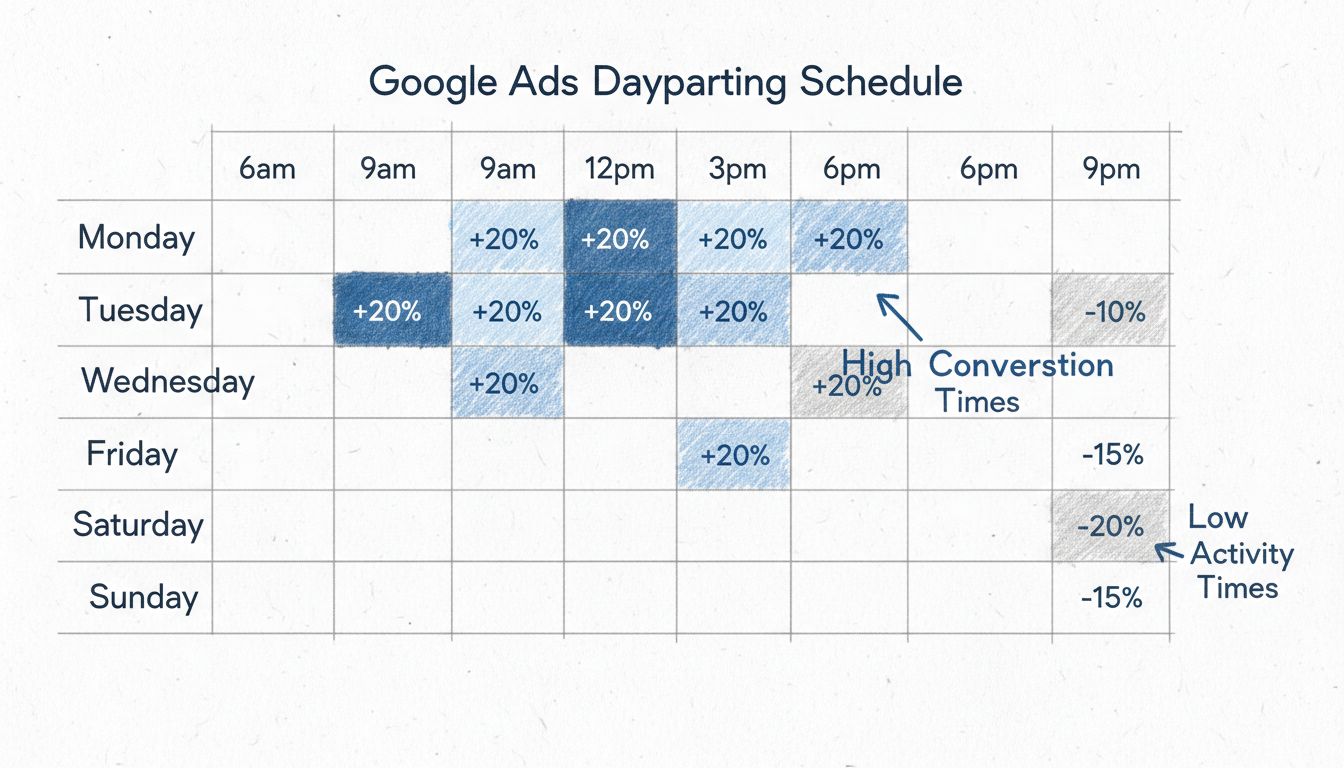
Bid adjustments are a critical component of dayparting that can dramatically improve your campaign’s performance and ROI. In the ad schedule view, you can set bid adjustments for specific days and times, expressed as a percentage increase or decrease from your base bid. These adjustments allow you to bid more aggressively during high-performing periods and conservatively during slower times. For example, if your historical data shows that Tuesday evenings generate 40% more conversions than other times, you might increase your bids by 25% during that period to improve ad visibility and capture more of that high-value traffic. Conversely, if Sunday mornings consistently show low engagement, you might reduce your bids by 15% to preserve budget for more productive times.
To implement bid adjustments, navigate to your ad schedule and locate the specific time period you want to modify. Click on the pencil icon or the bid adjustment field to enter your adjustment percentage. Google Ads accepts bid adjustments ranging from -90% to +900%, giving you substantial flexibility in your bidding strategy. When setting adjustments, base your decisions on concrete performance data rather than assumptions. Analyze your campaign’s historical metrics including click-through rates (CTR), conversion rates, and cost per acquisition (CPA) by time and day. Identify clear trends and patterns that indicate which periods deserve increased investment. For high-conversion periods, consider increasing bids by 20-50% depending on your budget and competition levels. For low-performing periods, decreasing bids by 10-30% can help preserve budget without completely eliminating visibility during those times.
Before implementing dayparting, conduct thorough analysis of your audience’s online behavior patterns. Review your Google Analytics data to identify when your users are most active on your website, looking for patterns in user engagement by hour and day of the week. Pay attention to metrics like session duration, bounce rate, and conversion rate at different times to understand not just when people visit, but when they’re most engaged. Consider conducting customer surveys or reviewing customer service data to understand when your audience prefers to engage with your brand. Additionally, research industry benchmarks and case studies relevant to your sector, as these can provide valuable insights into typical user behavior patterns for businesses similar to yours. This foundational research ensures your dayparting strategy is based on actual audience behavior rather than assumptions.
Leverage your historical campaign data to identify the specific times when your ads perform best. Analyze key performance metrics including click-through rates, conversion rates, and cost per acquisition by time and day of the week. Look for consistent patterns that emerge across multiple weeks or months, as these indicate reliable high-performing periods. Consider competitor analysis as well—research when your competitors are running their ads to identify potential untapped opportunities or times when you might need to compete more aggressively. Some businesses discover that their competitors are overlooking certain time periods, creating opportunities for less competitive bidding and better ad placement. Document your findings in a spreadsheet or dashboard to create a clear visual representation of your performance patterns throughout the week.
Define specific, measurable objectives for your dayparting strategy before implementation. Your objectives might include increasing website traffic during specific hours, boosting conversions during peak times, enhancing brand awareness through consistent daily presence, or reducing cost per acquisition by focusing budget on high-performing periods. Clear objectives guide all subsequent decisions about which times to prioritize and how aggressively to bid during different periods. Different objectives may require different dayparting strategies—for example, a brand awareness campaign might spread ads evenly throughout the week, while a conversion-focused campaign would concentrate heavily on peak-performing hours. Document your objectives and share them with your team to ensure everyone understands the strategy and can evaluate its success against predetermined metrics.
After implementing dayparting, continuous monitoring and optimization are essential for maintaining and improving performance. Check your ad schedule performance regularly through the Google Ads interface, reviewing metrics for each time period you’ve configured. Compare performance across different days and times to identify any changes in audience behavior or emerging opportunities. Be prepared to adjust your schedules and bid adjustments based on performance data—what works in one season might not work in another, and audience behavior can shift over time. Test different bid adjustment levels to find the optimal balance between visibility and cost-efficiency. Consider running A/B tests by adjusting bids for specific periods and measuring the impact on conversions and ROI. Document all changes and their results to build a comprehensive understanding of what works best for your specific business and audience.
PostAffiliatePro helps you track and optimize your affiliate campaigns with precision timing and performance analytics. Integrate your Google Ads dayparting strategy with advanced affiliate tracking to maximize conversions and ROI.
Learn why dayparting is essential for affiliate marketing success. Discover how strategic ad scheduling improves CTR, reduces CPA, and maximizes ROAS with PostA...
Master dayparting strategy to identify peak audience activity times, create targeted campaigns, and monitor performance. Learn how PostAffiliatePro helps optimi...
Dayparting allows defining, in which part of the day your ads will be shown. It is necessary to check and analyze the previous statistics and results.
Join our community of happy clients and provide excellent customer support with Post Affiliate Pro.



Cookie Consent
We use cookies to enhance your browsing experience and analyze our traffic. See our privacy policy.